> ## Documentation Index
> Fetch the complete documentation index at: https://docs.ocient.com/llms.txt
> Use this file to discover all available pages before exploring further.
# DBeaver Integration
export const Windows = "Windows®";
export const Ocient = "Ocient®";
export const Maven = "Apache® Maven™";
export const macos = "macOS®";
DBeaver is a free and open-source application for database administration and SQL querying.
## Prerequisites
To use DBeaver with the {Ocient} System, you must have these software prerequisites:
* Ocient System — Use latest version.
* JDBC Driver — Use latest version. See the Ocient {Maven} [repository](https://mvnrepository.com/artifact/com.ocient/ocient-jdbc4) for a list of all versions.
To install, download the latest version of DBeaver from the [DBeaver Community](https://dbeaver.io/download/) for your respective operating system.
Follow the installation steps and open DBeaver.
## Connect to Ocient
You can connect to your database by following these steps:
* In the main DBeaver window, select **New Database Connection** in the top left of the window.
* In the New Database Connection window, find the Ocient driver. Select it, and then select **Next**.
* Enter your database parameters with this information.
| **Field** | **Description** |
| --------------- | -------------------------------------------------------------------------------------------------- |
| Host | The hostname or IP address of the SQL Node of your Ocient System. For example: `databasehost-sql0` |
| Port | The port number for your connection. The default Ocient port is `4050`. |
| Database/Schema | The name of the database for connection. For example: `my_db` |
| User | The username associated with your database. |
| Password | The password associated with your username. |
* Select **Finish**.
## Update Ocient JDBC
By default, DBeaver downloads the latest JDBC version available in the [Maven repository](https://mvnrepository.com/artifact/com.ocient/ocient-jdbc4). If you need to update the JDBC driver or load a specific version, follow these steps.
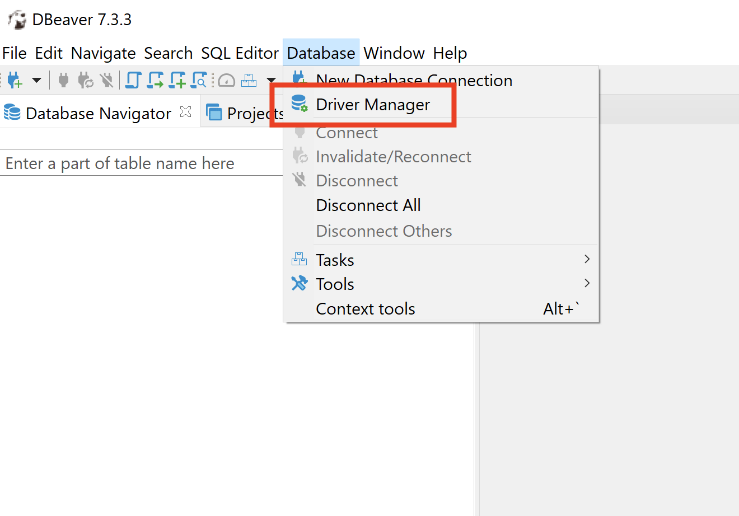
* In the DBeaver window, select **Database** > **Driver Manager**.
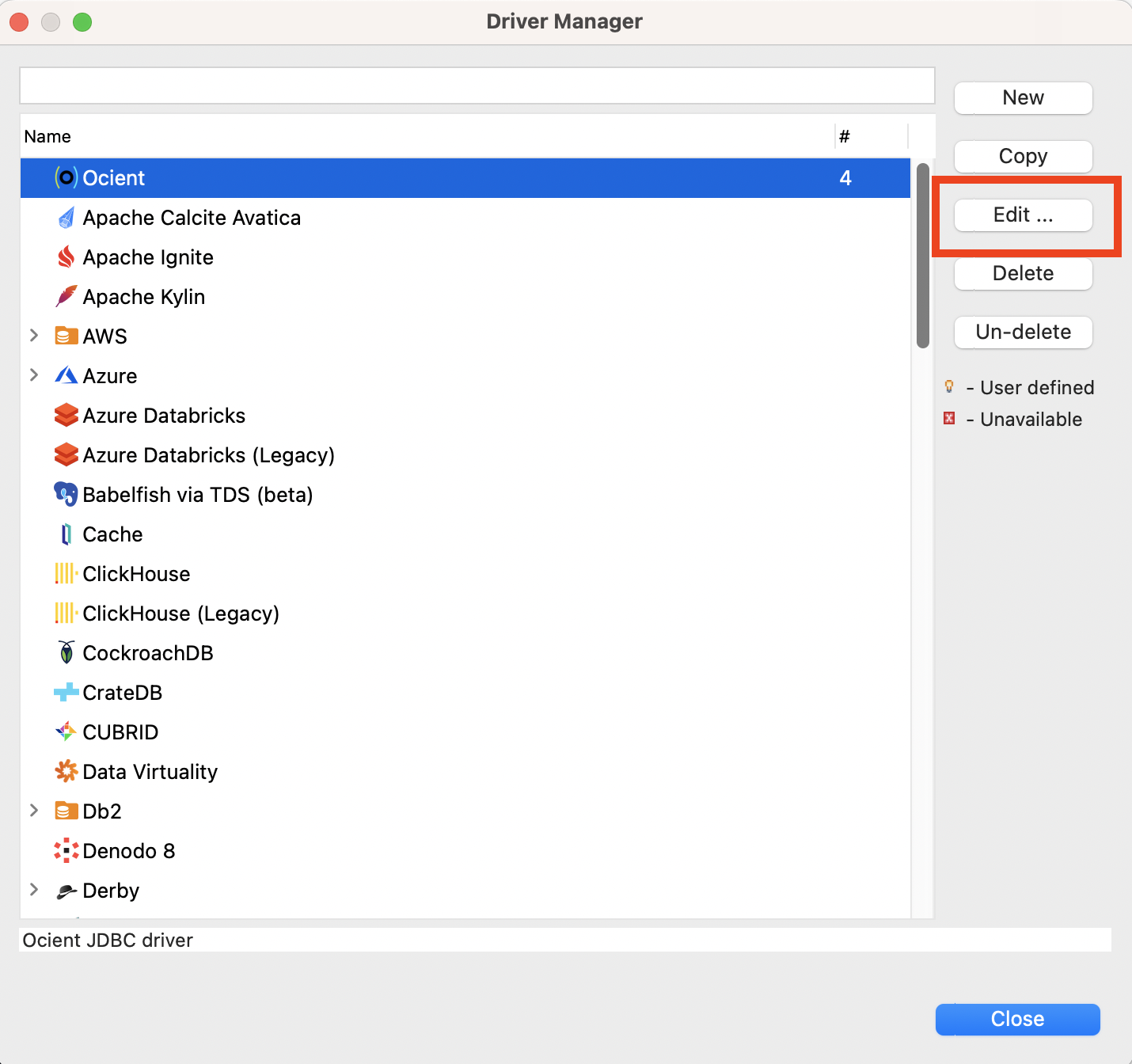
 * Search among the list of driver options to find the Ocient driver, and select it.
* With the Ocient driver highlighted, select **Edit**.
* Search among the list of driver options to find the Ocient driver, and select it.
* With the Ocient driver highlighted, select **Edit**.
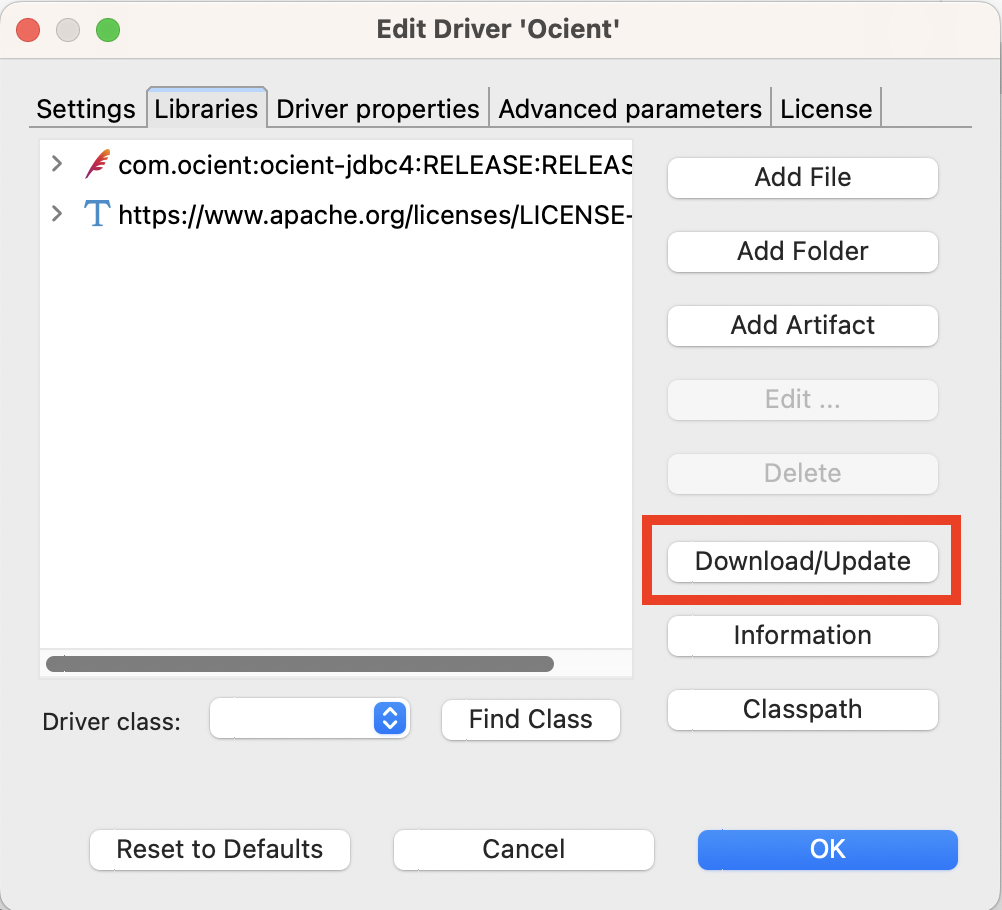
 * In the Edit window, select the **Libraries** tab.
**Update the Driver to the Latest Version**
To update the driver to the latest version, select **Download/Update**.
* In the Edit window, select the **Libraries** tab.
**Update the Driver to the Latest Version**
To update the driver to the latest version, select **Download/Update**.
 **Load a Specific JDBC Driver Version**
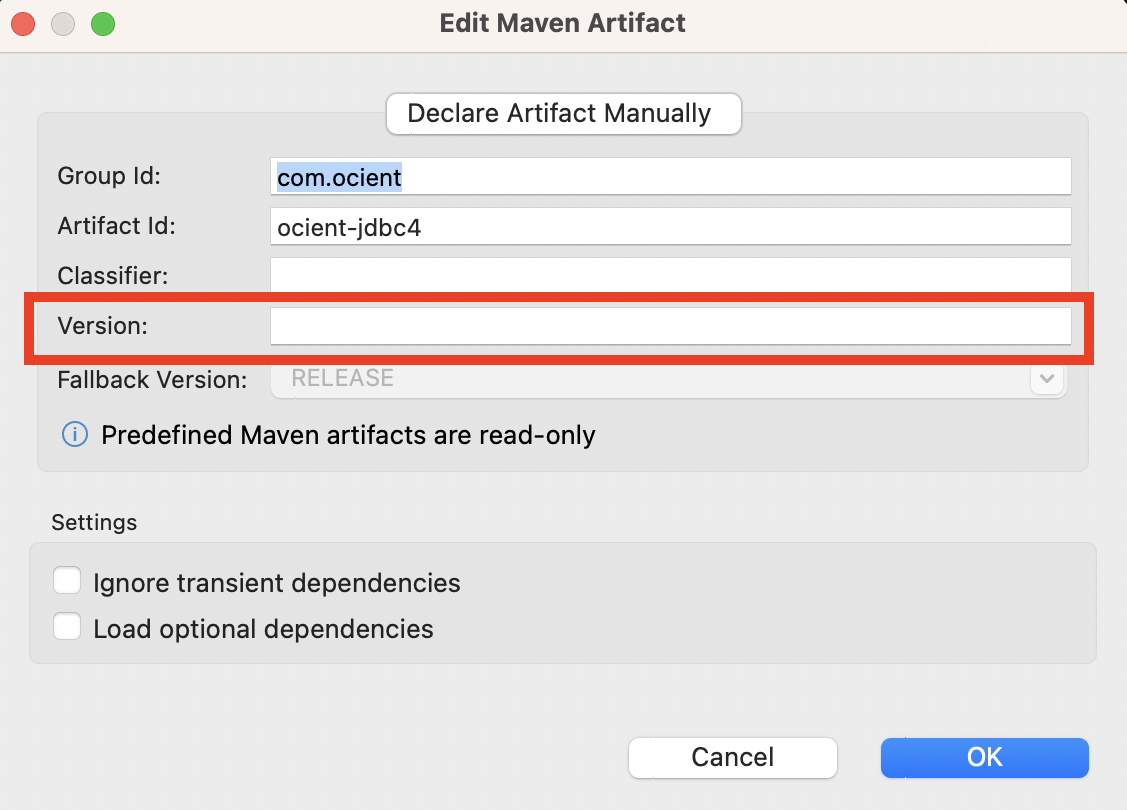
* Double-click the `com.ocient:ocient-jdbc4:RELEASE` entry in the Libraries window. The Edit Maven Artifact window opens.
* Enter the JDBC version in the **Version** field.
**Load a Specific JDBC Driver Version**
* Double-click the `com.ocient:ocient-jdbc4:RELEASE` entry in the Libraries window. The Edit Maven Artifact window opens.
* Enter the JDBC version in the **Version** field.
 For accurate time values, you might need to configure the DBeaver time zone settings.
* For {macos} systems, configure this setting in **Settings** > **User Interface**.
* For {Windows} systems, configure this setting in **Preferences** > **User Interface**.
## Related Links
[Connect to Ocient](/connect-to-ocient)
[Ocient Integrations](/ocient-integrations)
For accurate time values, you might need to configure the DBeaver time zone settings.
* For {macos} systems, configure this setting in **Settings** > **User Interface**.
* For {Windows} systems, configure this setting in **Preferences** > **User Interface**.
## Related Links
[Connect to Ocient](/connect-to-ocient)
[Ocient Integrations](/ocient-integrations)