> ## Documentation Index
> Fetch the complete documentation index at: https://docs.ocient.com/llms.txt
> Use this file to discover all available pages before exploring further.
# Metabase Integration
export const Ocient = "Ocient®";
export const Metabase = "Metabase℠";
{Metabase} is an open-source business intelligence tool designed to create charts and dashboards from various data sources.
## Prerequisites
To use Metabase with your {Ocient} System, you must have these software prerequisites:
* Ocient System — Use version 22.0 or later.
* JDBC driver — Use the latest version.
## Install Metabase
1. Go to the [Installing Metabase](https://www.metabase.com/docs/latest/installation-and-operation/installing-metabase) and follow the directions for installation, including all prerequisites.
2. Download the latest [ocient-metabase-driver.jar](https://github.com/Xeograph/metabase-ocient-driver/releases) file and copy it to your Metabase plugins folder. This JAR file enables your Metabase installation to connect to Ocient.
## Connect to Ocient
To add a database connection, select the icon at the top right of the Metabase homepage. Select **Admin settings > Databases > Add database** in the menu.
This connection page appears. The displayed connection fields change after you select **Ocient** as the database type.
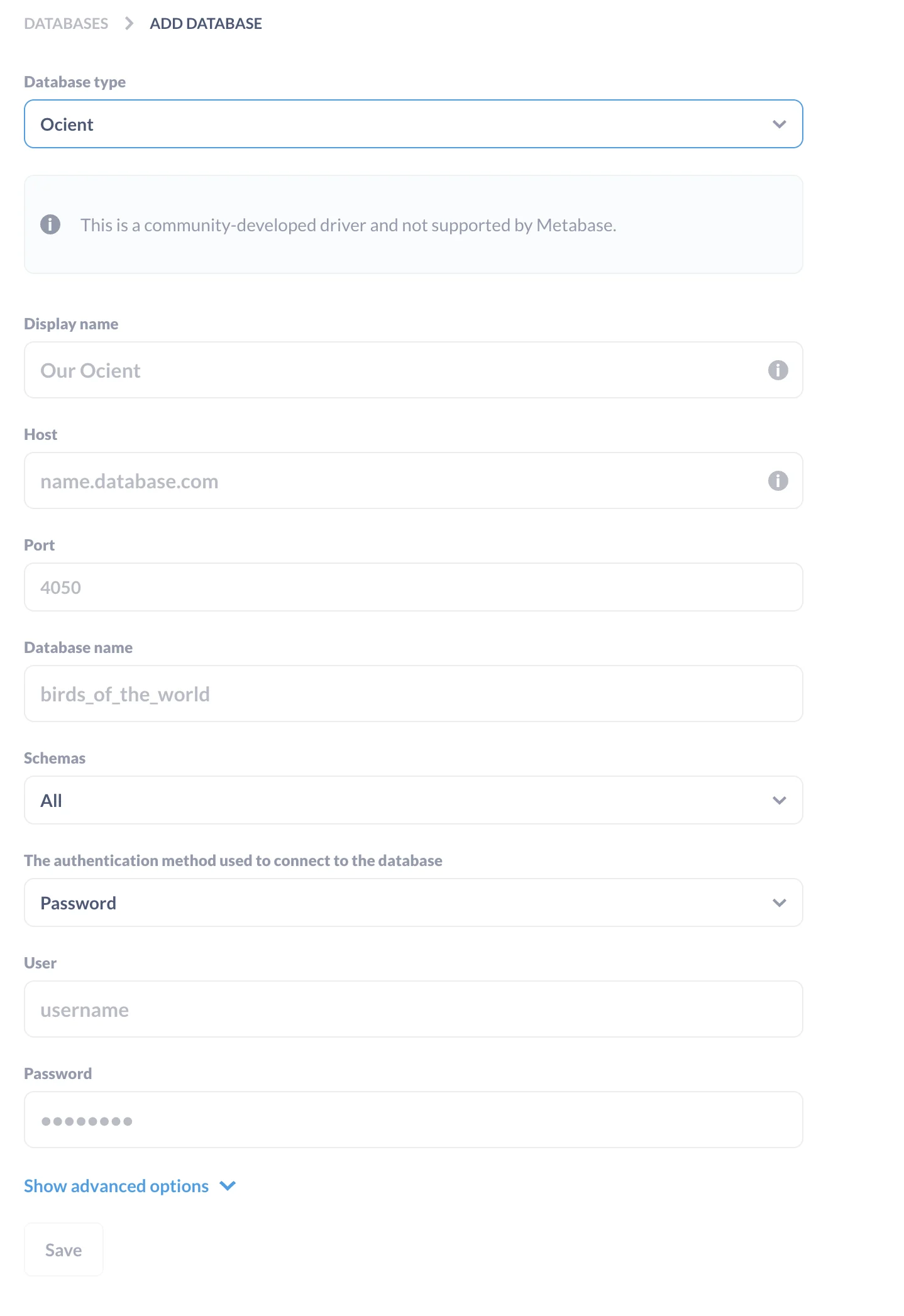 Enter these fields in your connection settings.
| **Field** | **Description** |
| --------------------- | ----------------------------------------------------------------------------------------------------------- |
| Database type | The type of database. Select **Ocient**. |
| Display name | The display name for your database in Metabase. |
| Host | The host name or IP address of the SQL Node of your database. For example: `databasehost-sql0` |
| Port | The port number for your connection. Unless you have to alter this, the default Ocient port is `4050`. |
| Database name | The name of the database for connection. For example: `my_db` |
| Schemas | The identifiers for any schemas you want to use or exclude. To use all available schemas, select `All`. |
| Authentication method | Choose between `Single Sign-On (Token)` for single sign-on (SSO) or `Password` for password authentication. |
| User | The username associated with your database. |
| Password | The password associated with your username. |
| Type of SSO token | Use `access_token`. |
| SSO token | Specify your SSO access token string. |
To use SSO authentication, you must have SSO integration enabled for the specified database and group. For more information, see [ALTER DATABASE SET SSO INTEGRATION](/databases#alter-database-set-sso-integration).
When you successfully connect, you see your database added to Metabase. Your database appears as one of the active connections in Metabase.
Enter these fields in your connection settings.
| **Field** | **Description** |
| --------------------- | ----------------------------------------------------------------------------------------------------------- |
| Database type | The type of database. Select **Ocient**. |
| Display name | The display name for your database in Metabase. |
| Host | The host name or IP address of the SQL Node of your database. For example: `databasehost-sql0` |
| Port | The port number for your connection. Unless you have to alter this, the default Ocient port is `4050`. |
| Database name | The name of the database for connection. For example: `my_db` |
| Schemas | The identifiers for any schemas you want to use or exclude. To use all available schemas, select `All`. |
| Authentication method | Choose between `Single Sign-On (Token)` for single sign-on (SSO) or `Password` for password authentication. |
| User | The username associated with your database. |
| Password | The password associated with your username. |
| Type of SSO token | Use `access_token`. |
| SSO token | Specify your SSO access token string. |
To use SSO authentication, you must have SSO integration enabled for the specified database and group. For more information, see [ALTER DATABASE SET SSO INTEGRATION](/databases#alter-database-set-sso-integration).
When you successfully connect, you see your database added to Metabase. Your database appears as one of the active connections in Metabase.
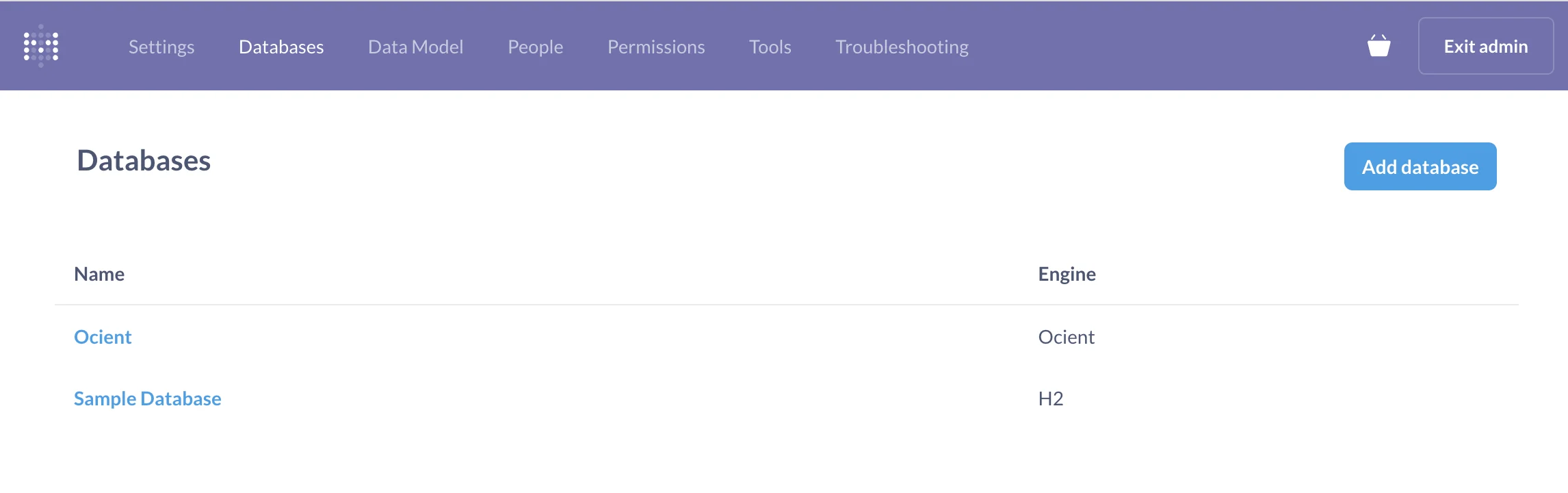 Your database appears as one of the active connections in Metabase.
## Advanced Connection Options
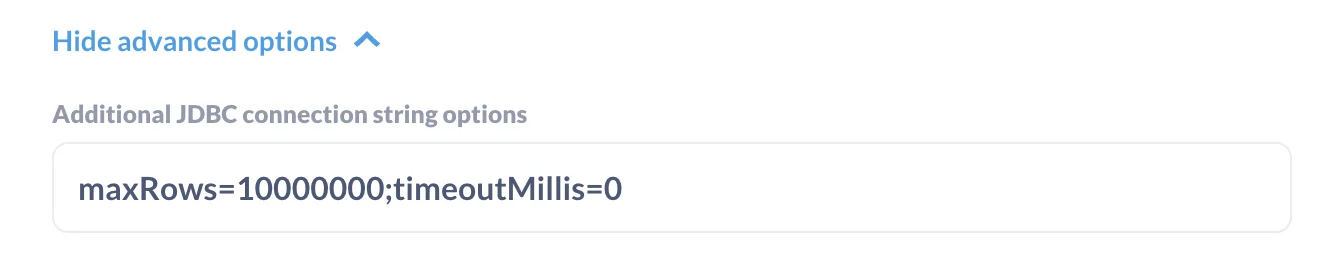
You can add more connection settings as part of the JDBC connection string in Metabase. To add these, go to the **Add database** page and select **Show advanced options**.
You can specify options in the field **Additional JDBC connection string options**. In this image, the specified options include a maximum of 10,000,000 rows and a timeout of 0 milliseconds, using the `maxRows` and `timeoutMillis` parameters, respectively.
Your database appears as one of the active connections in Metabase.
## Advanced Connection Options
You can add more connection settings as part of the JDBC connection string in Metabase. To add these, go to the **Add database** page and select **Show advanced options**.
You can specify options in the field **Additional JDBC connection string options**. In this image, the specified options include a maximum of 10,000,000 rows and a timeout of 0 milliseconds, using the `maxRows` and `timeoutMillis` parameters, respectively.
 For a list of supported JDBC options, see the [JDBC Manual](/jdbc-manual).
## Related Links
[Connect to Ocient](/connect-to-ocient)
[Ocient Integrations](/ocient-integrations)
For a list of supported JDBC options, see the [JDBC Manual](/jdbc-manual).
## Related Links
[Connect to Ocient](/connect-to-ocient)
[Ocient Integrations](/ocient-integrations)