> ## Documentation Index
> Fetch the complete documentation index at: https://docs.ocient.com/llms.txt
> Use this file to discover all available pages before exploring further.
# Tableau Integration
export const Windows = "Windows®";
export const Tableau = "Tableau®";
export const Ocient = "Ocient®";
export const Maven = "Apache® Maven™";
export const macos = "macOS®";
{Tableau} is an interactive data visualization application designed to create charts and dashboards from various data sources.
## Prerequisites
To use Tableau with the {Ocient} System, you must have these software prerequisites:
* Ocient System — Use the latest version.
* JDBC driver — Download the latest version with dependencies from the {Maven} [repository](https://mvnrepository.com/artifact/com.ocient/ocient-jdbc4).
## Installation
1. Download the latest version of Tableau Desktop for your respective operating system from the [Download Tableau Desktop](https://www.tableau.com/products/desktop/download) website.
2. Register and sign in to Tableau Desktop. Then, follow steps to complete the installation.
## Add Necessary Packages
To connect to Ocient, you must add these files to your Tableau installation:
* Ocient JDBC driver (`.jar`) — Use the latest version with dependencies from the [Maven repository](https://mvnrepository.com/artifact/com.ocient/ocient-jdbc4).
* Ocient Tableau connector file (`.taco`) — Download the latest version from [Tableau Exchange](https://exchange.tableau.com/products/178).
The `.taco` connector file supports Tableau Desktop and Tableau Server. Contact Tableau for support regarding Tableau Cloud.
### **Add the Ocient JDBC Driver JAR File**
Move the downloaded JDBC driver JAR file to the corresponding folder based on your operating system:
* {Windows} — `C:\Users[Windows User]\Documents\My Tableau Repository\Connectors`
* {macos} — `/Users/[user]/Documents/My Tableau Repository/Connectors`
### **Add the Tableau Connector File (**`.taco`**)**
Move the downloaded `.taco` connector file to the corresponding folder based on your operating system:
* Windows — `C:\Program Files\Tableau\Drivers`
* macOS — `/Users/[user]/Library/Tableau/Drivers`
## Connect to Ocient
Connect to your database by following these steps:
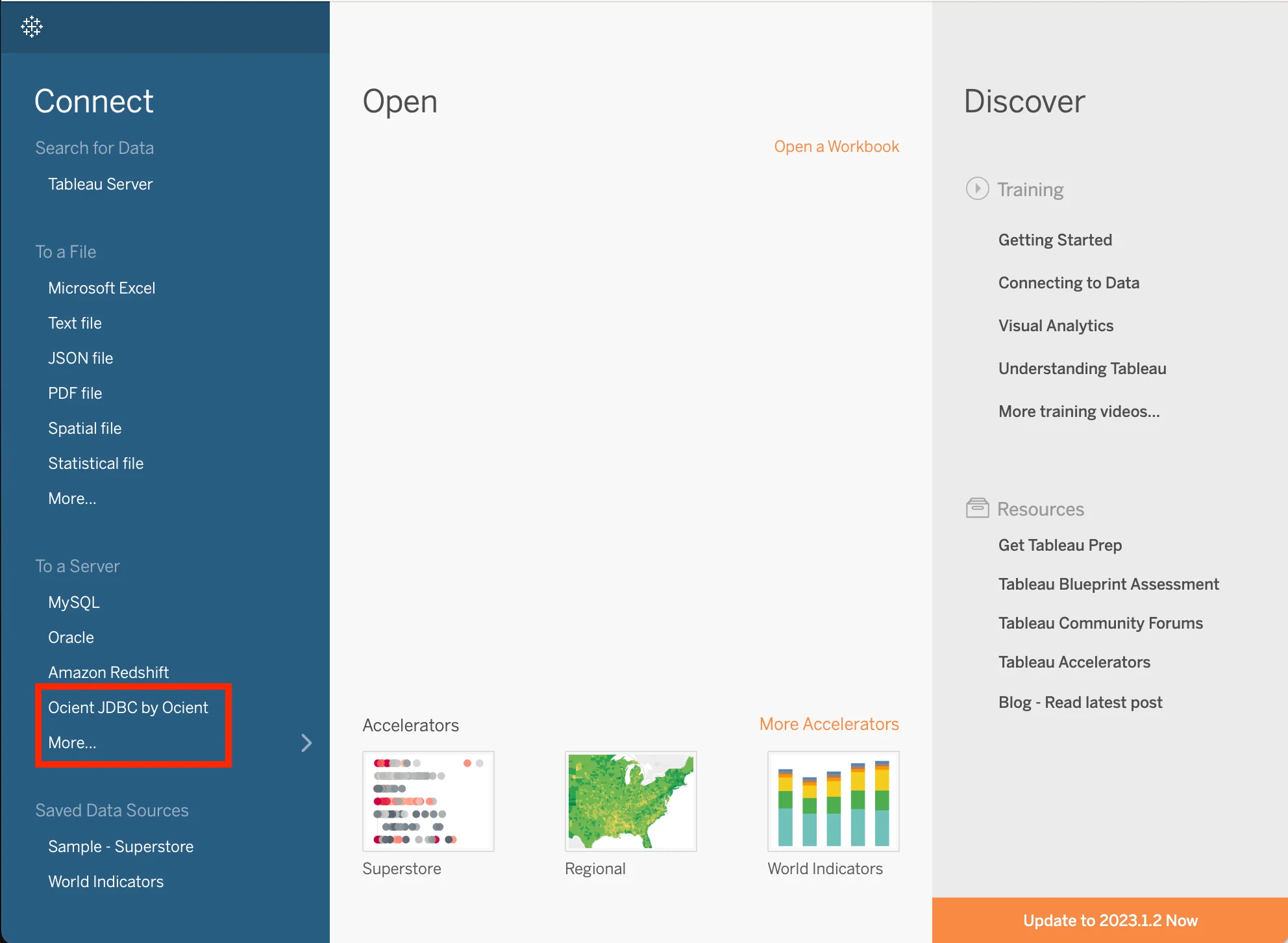
* Open Tableau and find the **Connect to a Server** menu. Select **Ocient JDBC** from the list of installed connectors. If **Ocient JDBC** does not appear as an option in Tableau, ensure that the Ocient Tableau connector file (`.taco`) is located in the correct folder.
 * In the connection window, enter your database parameters with this information.
| **Field** | **Description** |
| --------- | -------------------------------------------------------------------------------------------------- |
| Host | The hostname or IP address of the SQL Node of your Ocient System. For example: `databasehost-sql0` |
| Port | The port number for your connection. The default Ocient port is `4050`. |
| Database | The name of the database for connection. For example: `my_db` |
| User | The username associated with your database. |
| Password | The password associated with your username. |
* Select **Sign In** after you enter all the information.
## Related Links
[Connect to Ocient](/connect-to-ocient)
[Ocient Integrations](/ocient-integrations)
* In the connection window, enter your database parameters with this information.
| **Field** | **Description** |
| --------- | -------------------------------------------------------------------------------------------------- |
| Host | The hostname or IP address of the SQL Node of your Ocient System. For example: `databasehost-sql0` |
| Port | The port number for your connection. The default Ocient port is `4050`. |
| Database | The name of the database for connection. For example: `my_db` |
| User | The username associated with your database. |
| Password | The password associated with your username. |
* Select **Sign In** after you enter all the information.
## Related Links
[Connect to Ocient](/connect-to-ocient)
[Ocient Integrations](/ocient-integrations)