

Connect to the UI
Learn how to connect to the Ocient Management UI remotely. This process assumes you have access to an Ocient System with the UI installed.Prerequisites
Any computer that you use to access the UI remotely must have:- Network access to an Ocient System with the UI installed
- Google® Chrome, Safari®, Microsoft® Edge, or Firefox® (latest version)
Log Into the Ocient Management UI
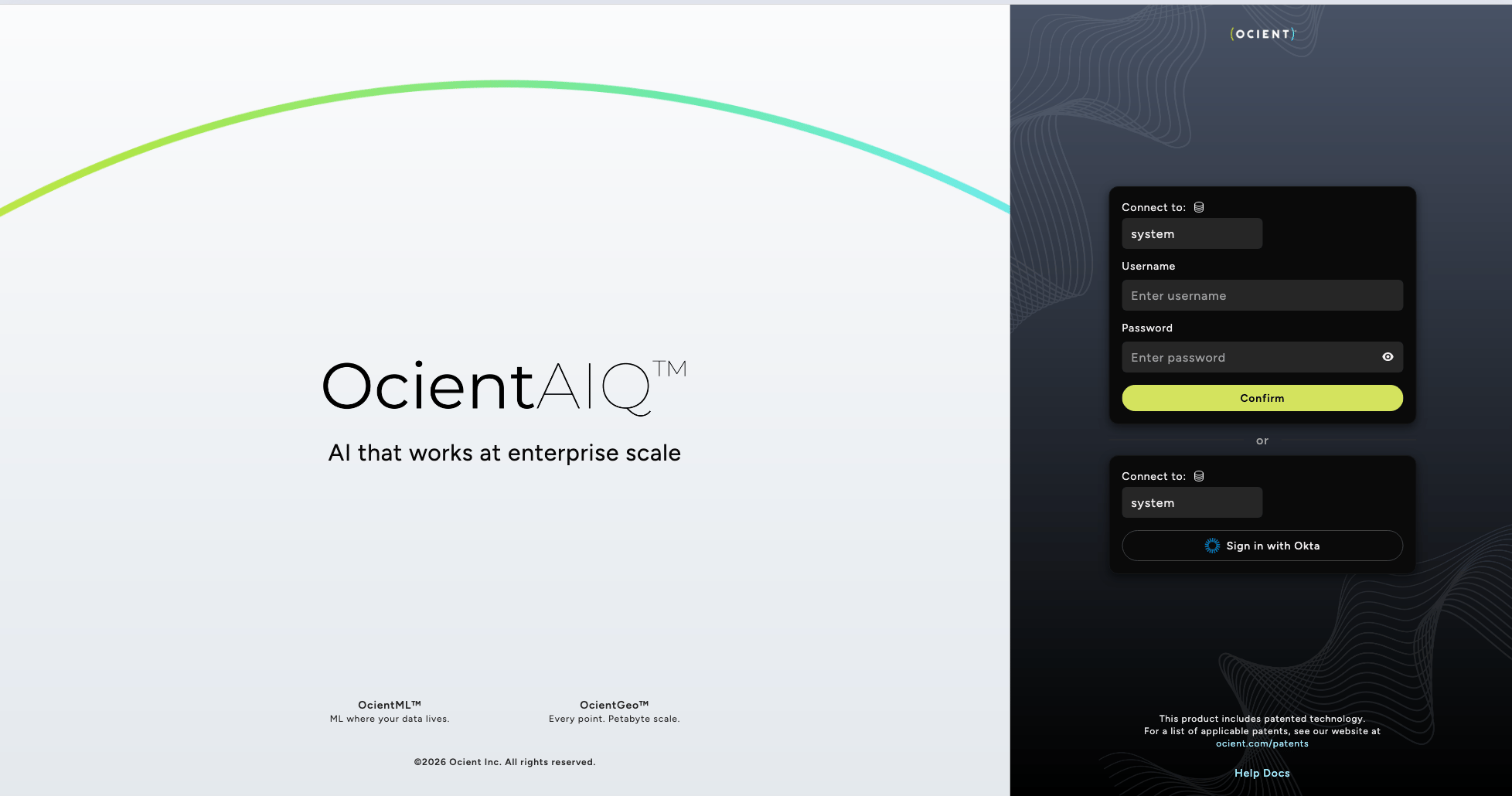
Follow these steps to connect to your Ocient System from any machine with network access.Navigate to the UI Using a Web Browser
To access the Ocient Management UI, use a web browser to navigate to the SQL Node using its IP address or hostname as a URL domain. This URL must use thehttps protocol.
Your SQL Node connection information is available from your Ocient System or database administrators. For details, see Configure Connection Endpoints.
To connect, specify the SQL Node IP address or hostname.
Select the Database
The Ocient Management UI can connect to individual databases or the defaultsystem database.
Connect to the Default Database
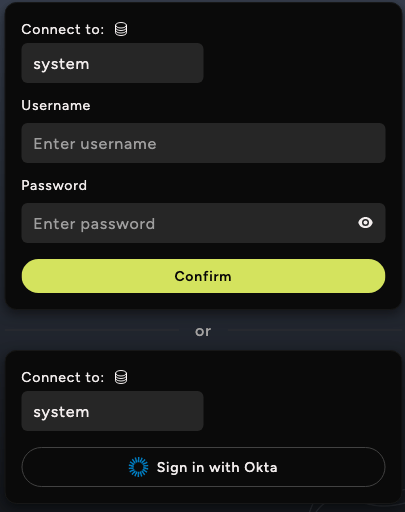
By default, the login page connects to system, which gives you visibility into all databases where you have access. To create or modify tables or to execute data pipelines, connect to an individual database instead. For details, see Manage Users, Groups, and Roles.
Connect to Your Database
To connect to your database, enter the name of the database in the Connect to field on the login page.
Login Credentials
You can log in to the Ocient Management UI using either of these methods:- User credentials (username, password).
- Single Sign-On (SSO) authentication — The UI supports multiple SSO integrations configured per database or Connectivity Pool.
Administration
Learn how to configure and administer the Ocient Management UI.Access Control
For full UI visibility and functionality, you must have read, create, and modify privileges on each database that you want to connect to. These user roles have full visibility and functionality in the Ocient Management UI:System AdministratorDatabase Administrator
Install and Manage the ocui Package
The Ocient System includes a base version of the Management UI bundled with the coreocient package. The ocui package is a separate DEB or RPM package that allows you to update the Management UI without upgrading the entire Ocient System. Install the ocui package on any SQL Node where you want to host the updated UI.
When the ocui package version matches the installed ocient package version, the system hosts the UI from the ocui package. When the versions differ, the system falls back to the base UI included with the ocient package.
For access to the
ocui package, contact Ocient Support.Install the ocui Package
Transfer theocui package file to the target SQL Node, then install it using the appropriate package manager command.
Install using DEB.
Verify the Installed Version
Use the package manager to check the installedocui version on the SQL Node.
Check the version using DEB.
Uninstall the ocui Package
Remove theocui package from the SQL Node using the appropriate package manager command. After removal, the system reverts to the base Management UI included with the ocient package.
Remove using DEB.
Configure Connection Endpoints
Access the Ocient Management UI by connecting to a SQL Node using the connection parameters set by its Connectivity Pool. The Connectivity Pool defines a SQL Node connection configuration with:- IP address
- Hostname
- Port
- SSO integration
sys.connectivity_pools system catalog table.
For information on SQL Node connection parameters (IP address and network ports), query the sys.connectivity_pool_participants system catalog table.
To alter SQL Node connection parameters (IP address, port, and SSO integration), see Cluster and Node Management.
Configure API Port
For network access, the Ocient Management UI requires a Connectivity Pool with an open port for the HTTP Query API. Follow these steps to ensure your port is accessible.- Identify the Connectivity Pool and SQL Node you want to use by querying the
sys.connectivity_pool_participantssystem catalog table.
-
In the system catalog output, check the
openapi_portvalue for the Connectivity Pool and SQL Node you want to use. If thisopenapi_portvalue isNULL, the port is not open. -
If you need to open the port or change its value, execute this statement using your Connectivity Pool and SQL Node names. This example uses port
443, which is the default port for HTTPS traffic.
Install SSL Certificates
The Ocient Management UI uses SSL certificates to connect to the system, similar to other methods such as the JDBC driver.By default, the system uses self-signed certificates. Using these certificates can result in the browser displaying an invalid certificate warning. For details about installing certificates, see Secure Connections Using TLS.